
2026-09-18
From Sandbox to a production WhatsApp number on Wapedia
Sandbox is for testing the number and send path. Move to a production number after KYC and Meta requirements are met, then serve customers in the live inbox.
From Sandbox to a production WhatsApp number on Wapedia
New Wapedia accounts almost always start in Sandbox. The banner on the dashboard marks that stage as a test lane, not a shop front. This note covers what comes after connecting WhatsApp: when it is safe to switch to a production number, and what changes in the inbox.
What Sandbox allows and what it does not
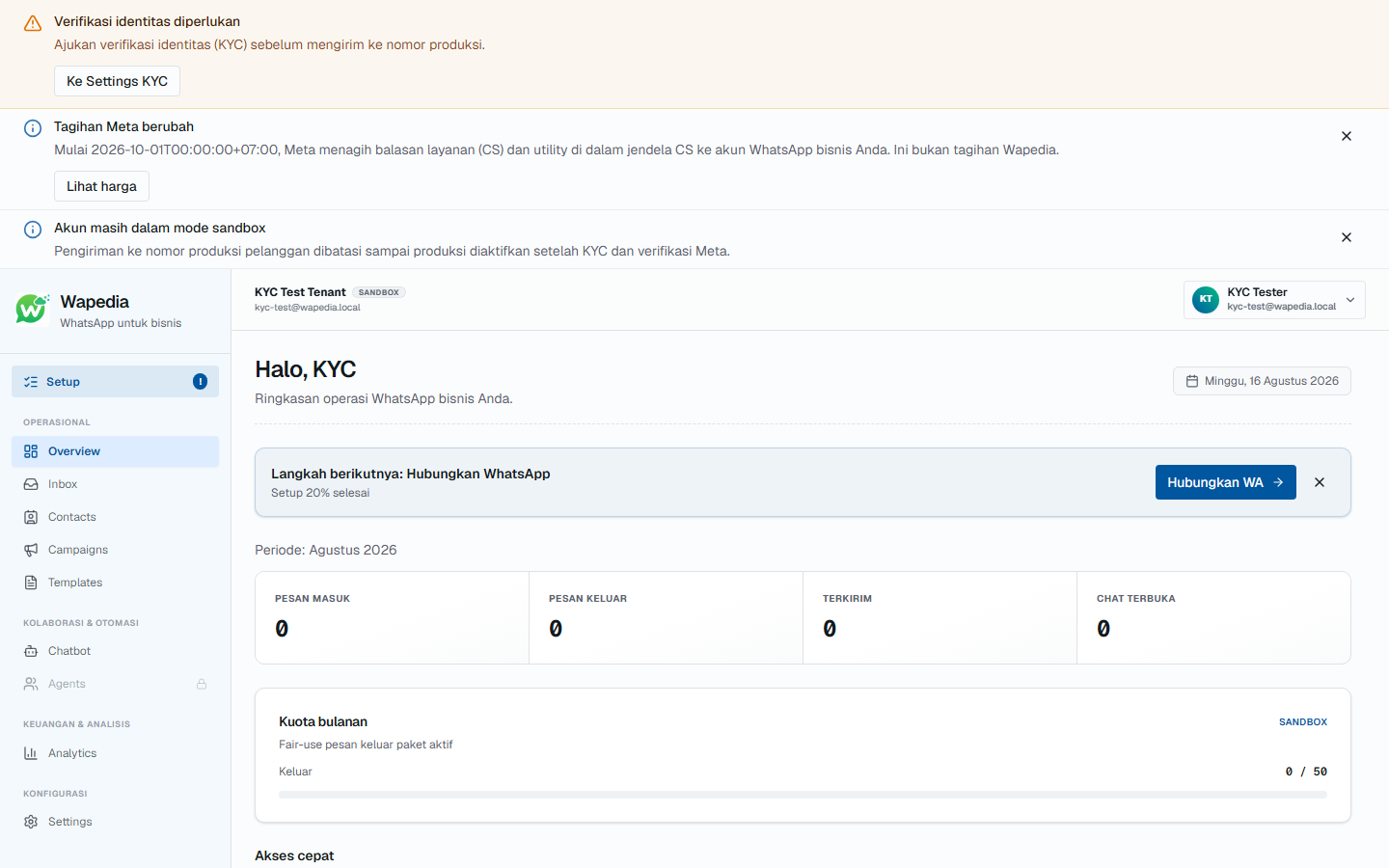
In Sandbox you may:
- Connect a test number with Connect WhatsApp
- Send and receive within the test quota
- Train the team in the inbox without opening the shop number to customers
Sandbox is not a stand-in for the number customers already know. Send quota is limited. The KYC or sandbox banner stays until Meta and your business account are ready for production.
The Wapedia plan covers the inbox and platform features. WhatsApp conversation charges are still billed by Meta to your business account. Figures and the two-invoice model: Cloud API costs.
Requirements before a production number
Finish these before you change the number in front of customers:
- Invite and login at app.wapedia.id are active. Public signup is still closed; early access via pricing or halo@wapedia.id.
- Identity verification (KYC) and Meta requirements for the shop number are done in Meta’s path (Business Manager / WhatsApp Manager).
- The production number can receive SMS or a voice call for verification, and can be released from the regular WhatsApp app if Meta asks.
- The conversation payment method in WhatsApp Manager is filled in. Without it, production sends can fail even when the Wapedia dashboard looks fine.
If any item is still open, stay on Sandbox. Connecting the shop number too early only moves the failure onto customers.
How to switch in the dashboard
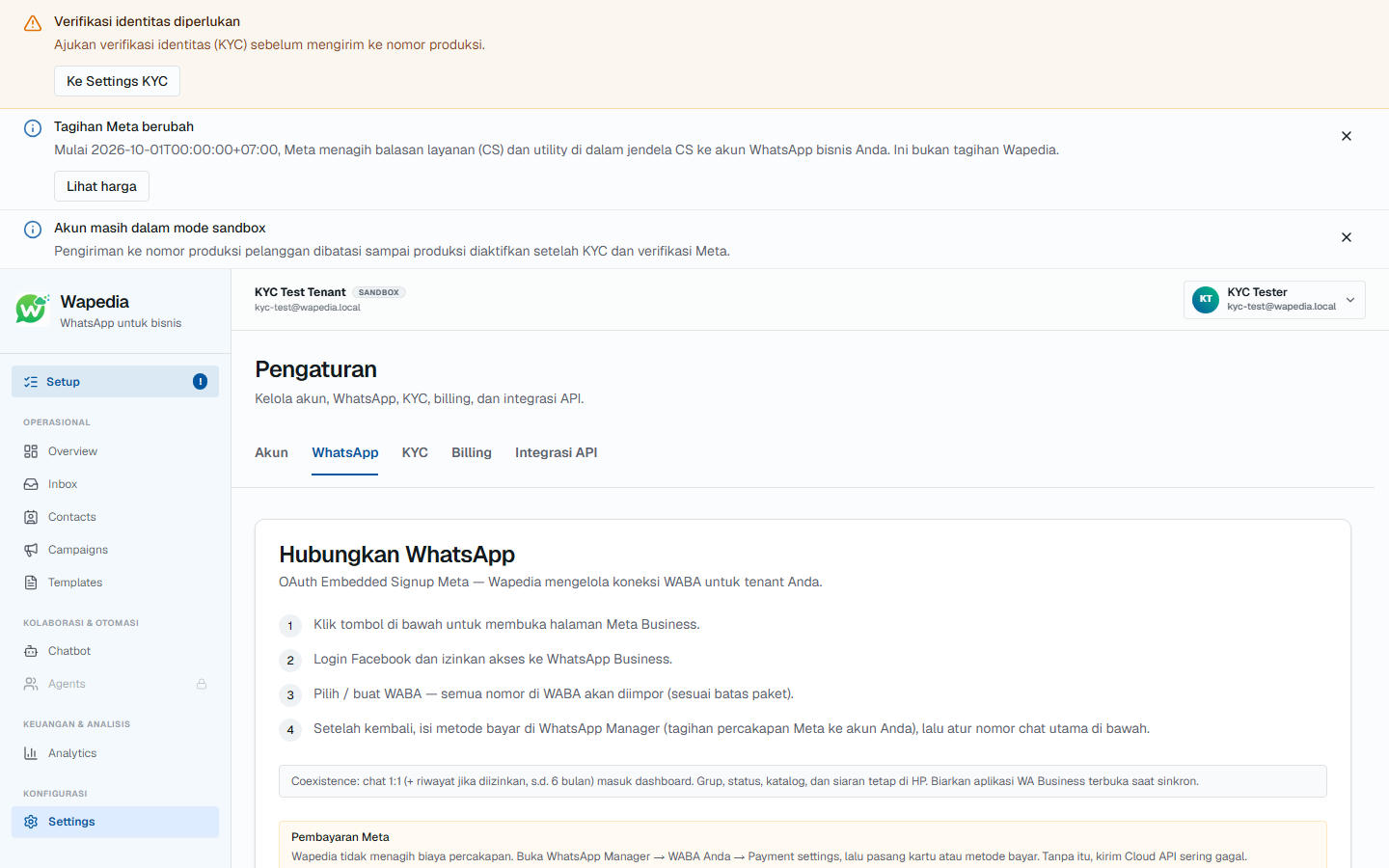
The path in Wapedia matches the first connect: Settings → WhatsApp tab → Connect WhatsApp, then follow the Meta window. The difference is that you pick the WhatsApp Business account and number the shop will use, not the test number.
After success:
- The Sandbox banner goes away, or the account status moves to production (per Meta verification)
- The inbox uses the shop number
- Capacity follows the active plan, separate from Meta conversation rates
Step-by-step Meta window detail is in connect WhatsApp Business. Do not paste a token into a form; Embedded Signup handles that.
After production: inbox and the 24-hour window
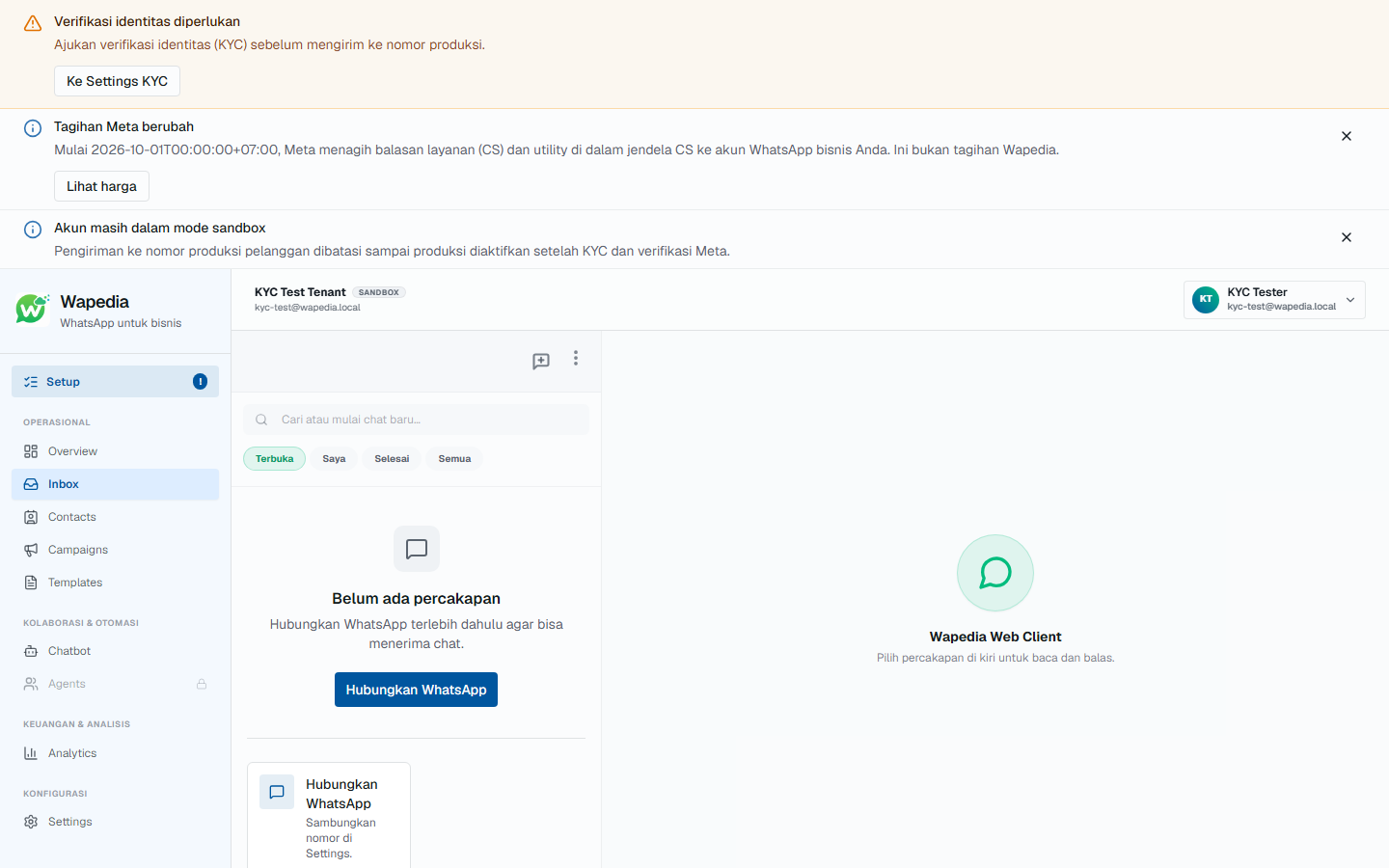
Customer chats land in Inbox. Free-form text only goes through while the 24-hour window is open. When it is closed, send a Meta-approved template.
An empty Sandbox inbox often hides the window indicator. In production that indicator matters once real conversations arrive.
Short checklist
- [ ] KYC and Meta requirements for the shop number are done
- [ ] Conversation payment method in WhatsApp Manager is set
- [ ] Production number is connected from the dashboard, not via WhatsApp Web QR
- [ ] The team knows free-text vs template when the 24-hour window closes
- [ ] The Wapedia plan fits the inbox volume you expect
Public signup is still closed. Early access: pricing or halo@wapedia.id.